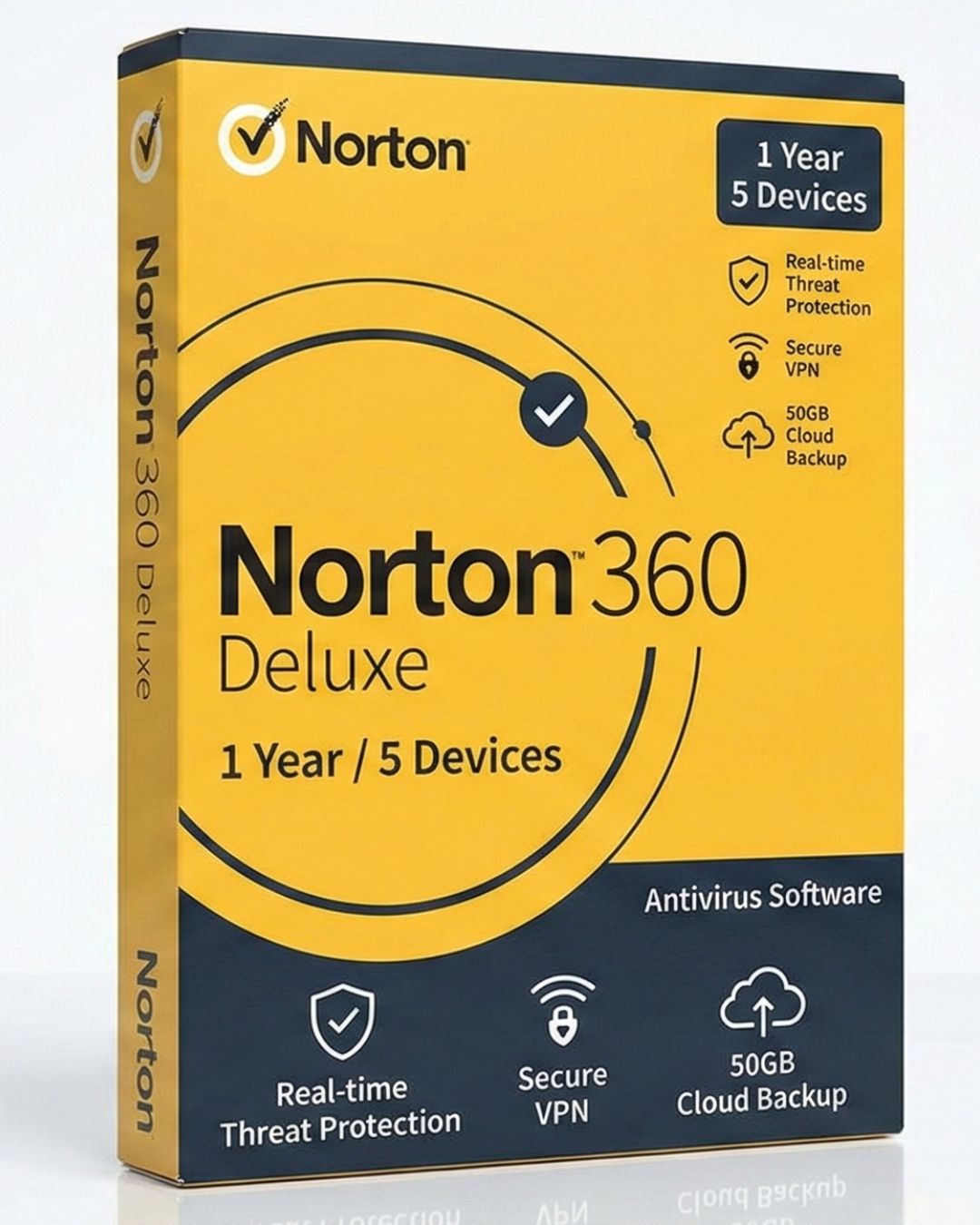
Norton 360 Installation: Step-by-Step Setup Guide
Norton 360 is more than just a virus scanner; it is a full security suite. Because it includes cloud backup and identity monitoring, setting it up requires a few extra steps compared to basic software.
Step 1: Account Creation & Download
Unlike older software that used CDs, Norton 360 is tied entirely to your online account.
- Go to the official Norton portal and log in (or create an account if you just purchased a license).
- Click the "Download Desktop App" button.
- If you are installing this on a secondary device, you can click "Send Download Link" to easily email the installer to your other PC or Mac.
Step 2: The Installation Wizard
Open the downloaded file. The Norton installer will automatically check your system for conflicting software. If it finds an old antivirus program, it will ask for permission to uninstall it. Allow it to do so, and restart your computer if prompted.
Once installed, Norton will perform a quick initial scan to ensure your system is currently clean before it establishes its active defenses.
Step 3: Configuring Cloud Backup
If your plan includes Cloud Backup (which protects against ransomware), you need to tell Norton what to save.
- Open the Norton 360 dashboard and click "Cloud Backup."
- Select "Manage Backup Sets."
- Choose which files you want to protect (we recommend Pictures, Financial Documents, and Desktop files).
- Turn on "Automatic Backup" so it runs quietly in the background when your PC is idle.
Activating LifeLock Identity Monitoring
If you purchased a plan with LifeLock, it is not active by default. You must log into your web dashboard and manually enter the information you want monitored on the Dark Web (e.g., your Social Security Number, credit cards, and email addresses).